Shooting for charity – building the Hunger Games

Where do we begin?

Feeding the mind has always been important to me, whether with knowledge and fun problems, or with food. So when I joined PointClickCare and experienced how much they value giveback initiatives I jumped at the opportunity to start one.

FoodOps was born and has been fighting food insecurity in our staff localities through a variety of donations, employee volunteer hours and corporate support for 5 years – if you’re reading this and contributed in some way/shape/form, you’re the best 🙂

Typically we run campaigns during the summer to give staff something fun to do and during the winter months to keep families happy and healthy during the holiday season.

Regardless of the time of the year, I love integrating some physical ‘boots on the ground’ component – I find the whole experience sticks better with staff when they’re bonding over bad sandwich puns in our local soup kitchen, or challenging each other to see who can move the most flour across a food bank warehouse, or simply being there to provide someone a warm meal and a smile.

Whatever the case is, when they leave for the day and look back on this experience fondly I can rest peacefully knowing that it meant something to them, and whether they realize it or not, that it meant 10x more to someone that needed it.

This year’s summer campaign is going be different

By the time you’re reading this, the cat’s out of the bag – you’re aware this year’s summer event will be carnival themed, and unlike last year’s speed packing activity that went towards Granite Education Foundation’s Back to School drive, this year we’re doing something more… active.

We’re building a game, more literally a carnival-esque shooting gallery, a project we’re dubbing The Hunger Games.

Drop targets and you’ll get points from corporate that you can choose to donate towards a food insecurity initiative of your choice!
Drop a peer and you’ll get double allocation next sprint.

Key tenants for this build;

  • Be fun – fancy LED lighting, moving targets, cool sounds and non-lethal projectiles perfect for kids and adults alike, and if we have time a scoreboard to track the pros from the plebs.
  • Be reusable – I want this used for different kinds of fun employee engagement events, whether its by my FoodOps committee, corporate giveback, etc. This means the build must be capable of disassembly and reassembly several times over.
  • Be friendly – we’re a healthcare SaaS, not a GameStop. Everything from electromechanics to game operation + reset to physical assembly + disassembly should be doable by 2 people without backgrounds in carpentry.

Coming to 5570 near you…

2 months to build this key prop for the FoodOps giveback initiative at our Mississauga (HQ) location is a lot of time… to procrastinate.

So in an effort to keep things moving, document the build and to give people a sneak peek, I’ll be dropping a post about our progress now and then.

This isn’t a huge project for me, but at the same time not a small one… I’ve got a bunch of wicked cool ideas for how I plan to make this engaging, from the game down to art and actual giveback logistics.

Hopefully you find something neat from these reads – whether its a sneak peek to give you an advantage on game day, fun little Easter eggs or just build instructions – which before I forget, will be released in their entirety on the completion of this project. That’ll include CAD files, EAGLE schematics, BOMs and build guides.

My Kubernetes Pod Lifecycles Workshop Experience

A couple weeks ago, I presented an internal workshop at PointClickCare as part of a Learnathon – 2 weeks of buffet-style workshops delivered by staff and vendors followed by a 1 week project period akin to a Hackathon.

In this session, we covered theory around Kubernetes pod life cycles, along with operator considerations. In the remaining time, we chatted about probes, readiness gates and container life cycle hooks.

Overall it was a great experience. I always find it tricky presenting to a mixed audience (in this case, a mix of both infrastructure engineers and SREs) but at the end of the day the content was relatively digestible and will be a part of our formal learning pathways moving forward.
For the next one, I’ll see if I can add more cross-interactive components so workshop participants can get an opportunity to work together rather than a silo in their lab environment.

There was a practical lab portion to this published internally, but the theory I’ve sanitized and releasing here publicly.

Give it a read and learn something new – I know I did 🙂

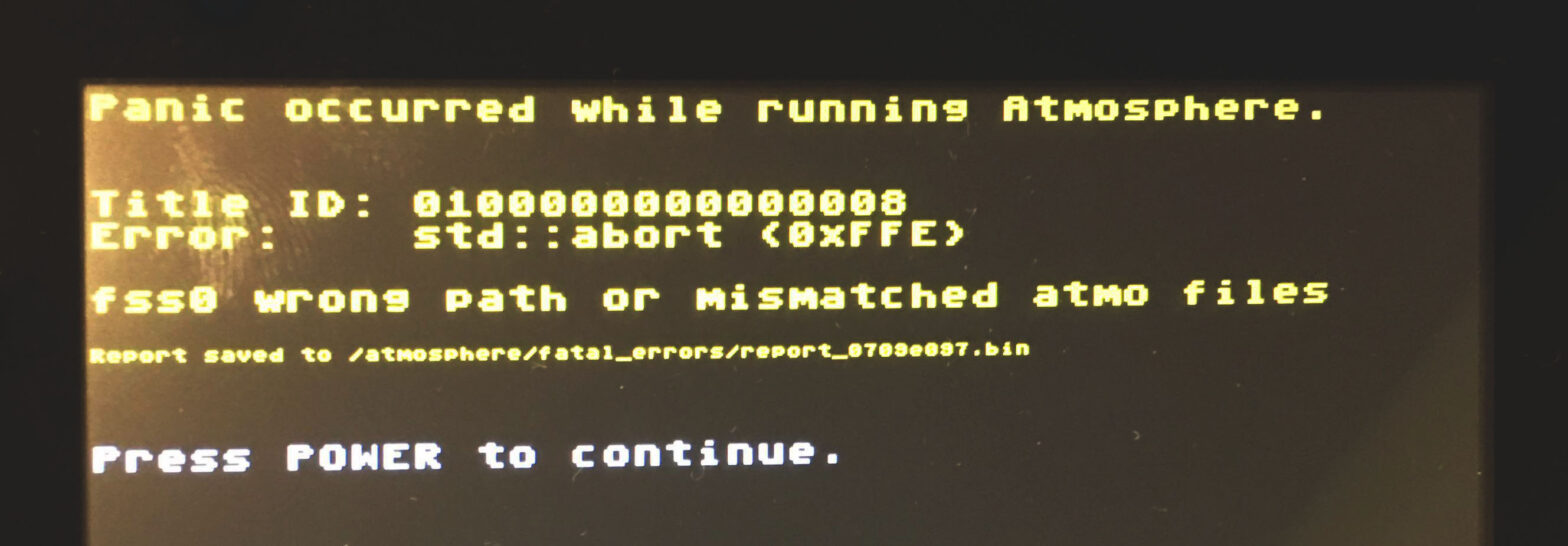
Fixing ‘A fatal error occured when running Atmosphere’ Title ID: 010000000000002b

At the time of writing, there are several issues (#1124, #1145, #1173, #1256, #1491) opened into Atmosphere-NX/Atmosphere regarding the following error:

A fatal error occurred when running atmosphere
Title ID: 0100000000000002b
Error Desc: std: abort () (called 0xffe)

I encountered it out of nowhere on SW 15.0.1|AMS 1.4.0, but have heard of others facing it as a result of a bad microSD (already tested mine), or as the result of uncleanly shutting down Atmosphere.

Besides restarting from scratch with setting up a new emuNAND, I’ve also heard of success by restoring from an entire backup emuNAND.

Both of these are too nuclear for my tastes – let’s look into how we can recover an existing Atmosphere emuNAND by partially recovering from an eMMC (sysNAND) backup.

You made an eMMC backup for this very purpose

Besides a properly backed-up eMMC as documented almost everywhere when first homebrewing the Nintendo Switch (e.g. NH Switch Guide), you’ll also need:

Should note that the files we’ll be recovering from eMMC don’t seem to change much across Switch versions – in recovering my switch, I ended using an eMMC backup made on SW 9.0.1.

To summarize

The process boils down to a few key steps:

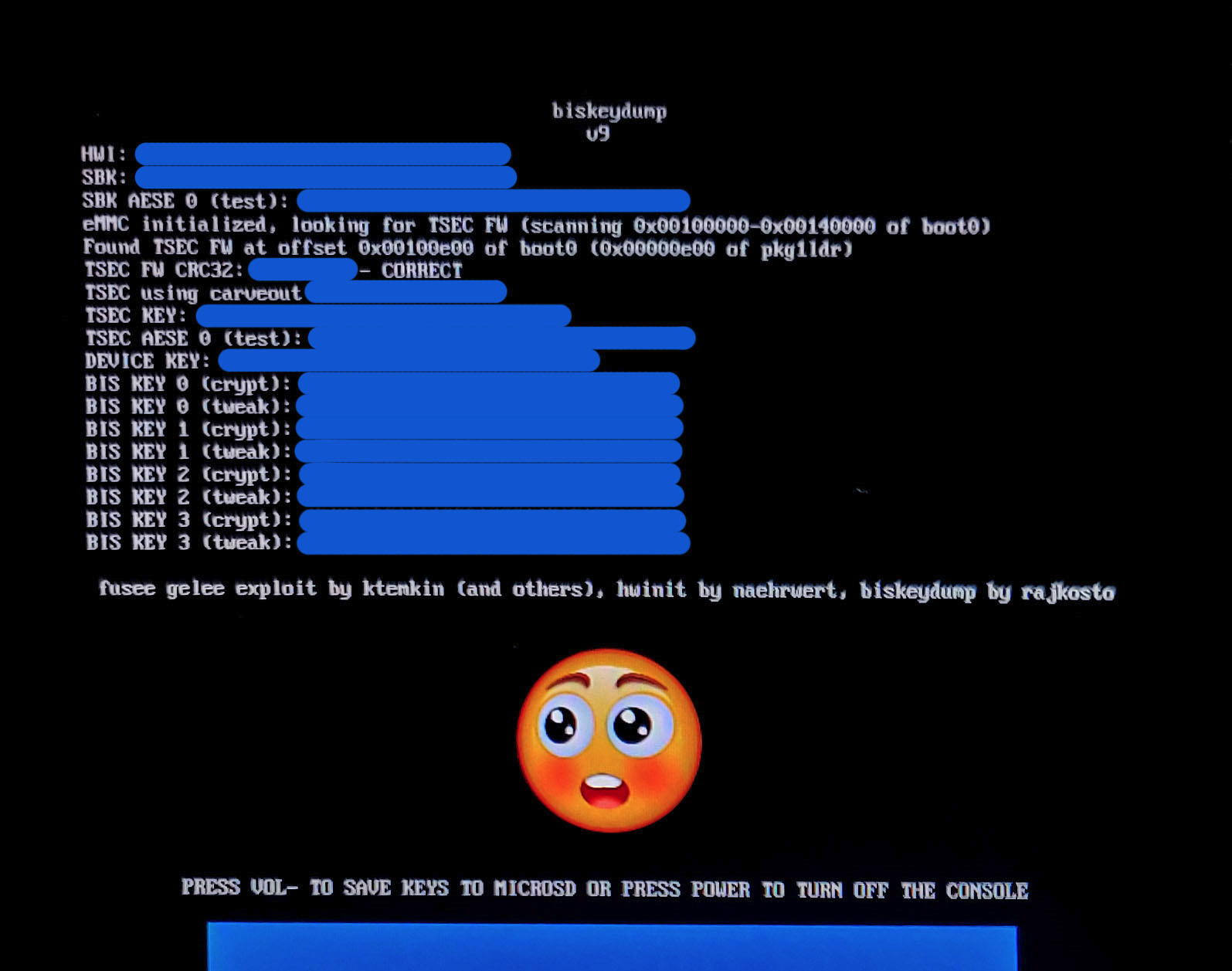
  1. Using Hekate, boot into biskeydump and dump Switch BIS keys to SD card
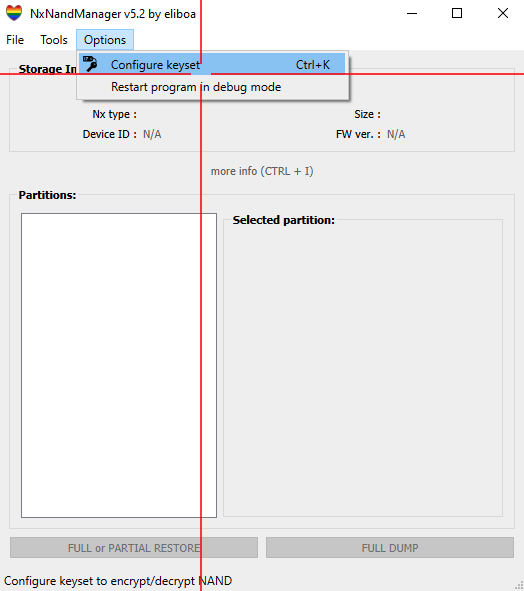
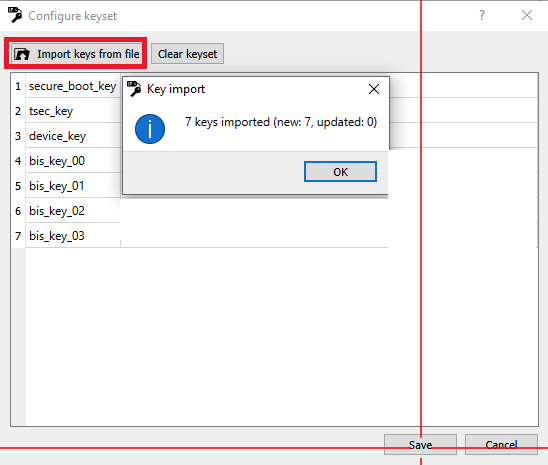
  2. Using NxNandManager, configure keyset to the dumped keyfile from biskeydump
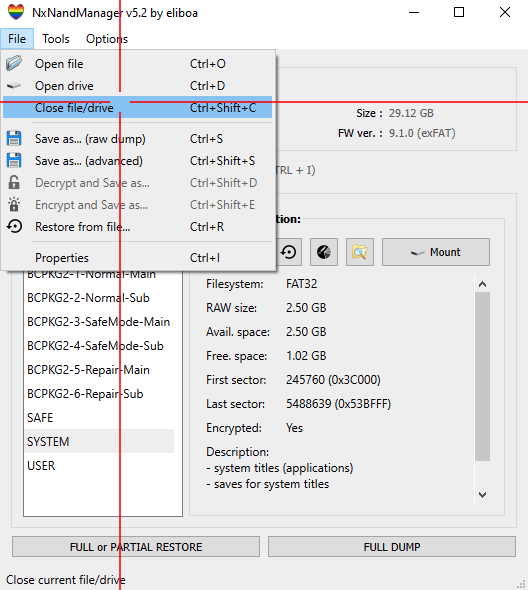
  3. Using NxNandManager, mount eMMC backup SYSTEM partition in read-only
  4. Copy the following files to some local folder – we’ll be recovering TO these
    /saves/8000000000000050
    /saves/8000000000000052
  5. Using NxNandManager, mount emuNAND SYSTEM partition in read/write
  6. Copy the following files to some local folder, then delete from emuNAND
  7. Copy the local files from step #4 into your emuNAND /saves/ folder

Step-by-step

1. Dump Switch BIS Keys

Using Hekate, launch biskeydump payload. You can also directly inject it via TegraRcm like any other binary.

Hit VOL- key to save keys as a text file to root of microSD card (/device.keys)

Shut off the console and get the microSD plugged into your Windows host.

2. Recover /saves/80…50 and /saves/80…52 from eMMC backup

Using NxNandManager, configure keyset by importing exported BIS keys from Switch microSD card (/device.keys).

NxNandManager
NxNandManager | Configure keyset

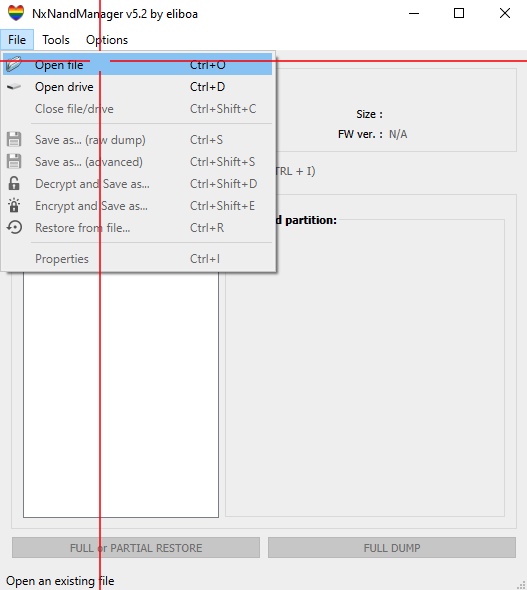
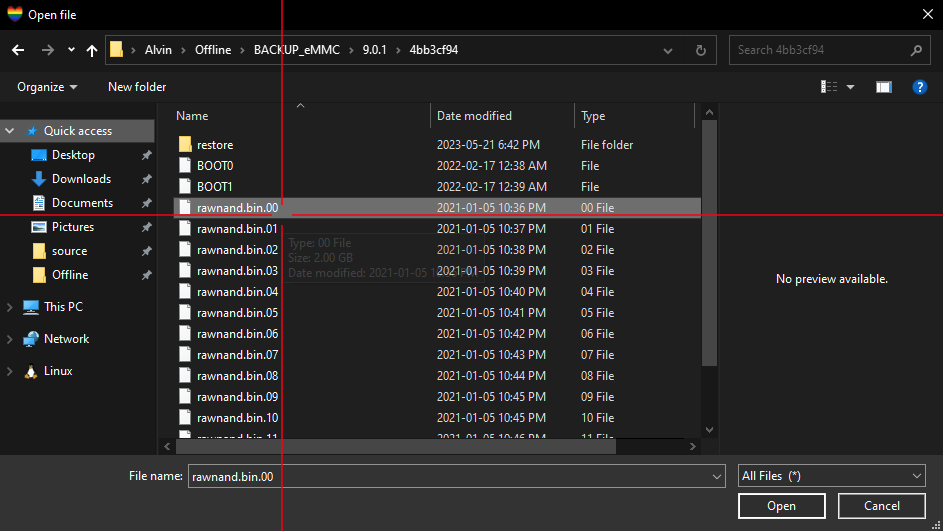
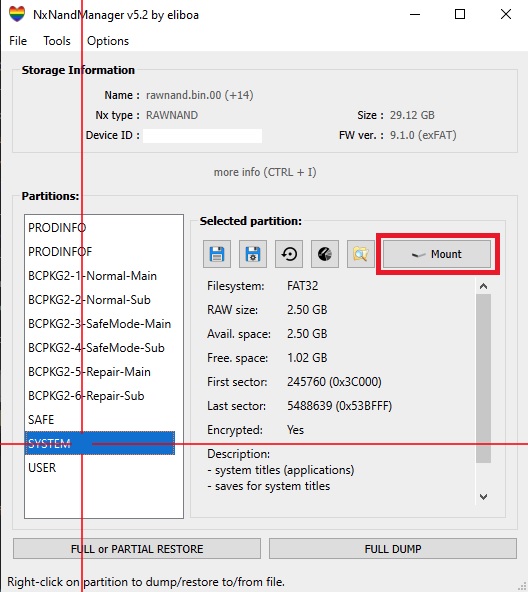
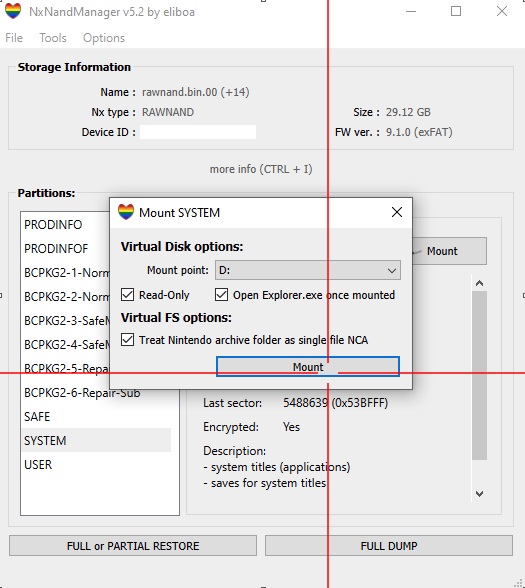
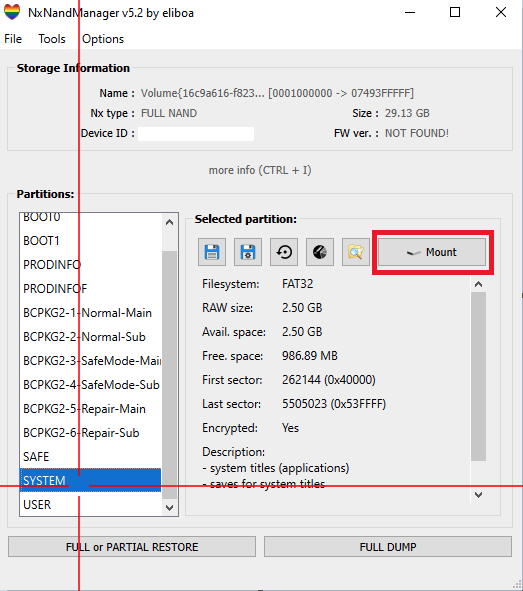
Load backup eMMC and mount SYSTEM as Read-Only – we don’t want to modify our backup.

If this is the first time doing so, you might be prompted to install the Dokan dokan1 DiskDrive driver. Next through the Windows Device Driver Installation Wizard to do so.

NxNandManager
NxNandManager | Open file (choose starting rawnand.bin.00)
NxNandManager | Partition view
NxNandManager | Mounting SYSTEM partition in read-only

From whatever mount path SYSTEM is at, copy the following files to some local folder:

  • SYSTEM (NxNandManager)/save/8000000000000050
  • SYSTEM (NxNandManager)/save/8000000000000052

Return back to NxNandManager and Unmount system.

NxNandManager | Unmount SYSTEM
NxNandManager | Close eMMC

3. Restore /saves/80…50 and /saves/80…52 to emuNAND

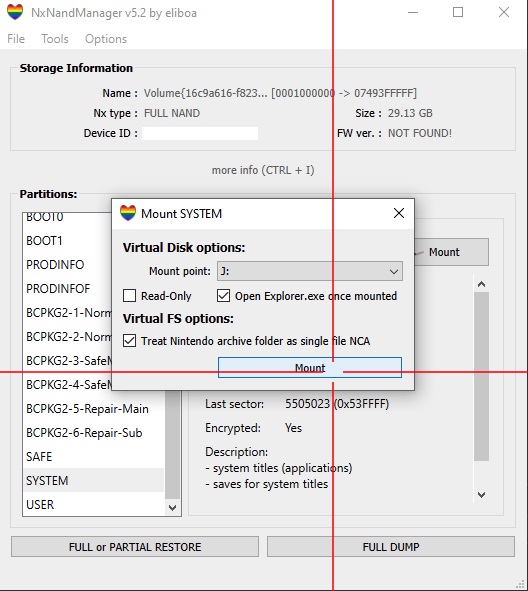
Mount our switch microSD card and load emuNAND from device. Ensure that when mounting SYSTEM that Read-Only is unchecked.

NxNandManager
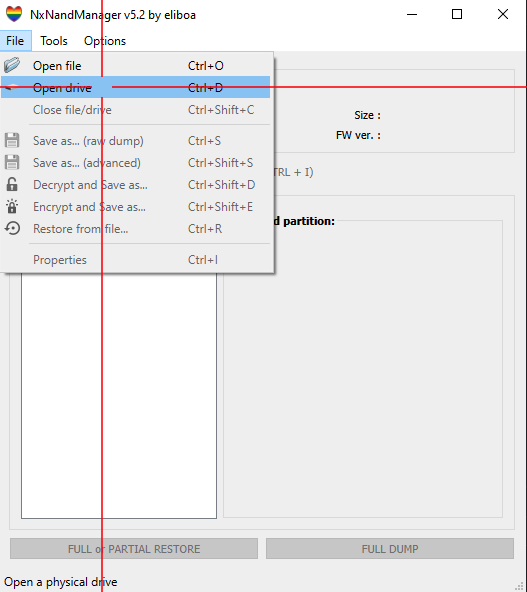
NxNandManager | Open drive (emuNAND typically the smaller 30GB volume)
NxNandManager | Partition view
NxNandManager | Mount SYSTEM in read/write

Copy the following files to some local folder on your Windows host – they’re most likely bad files, but we don’t want to delete them in the event that recovering from eMMC makes things worse and we end up needing to recover from them.

  • SYSTEM (NxNandManager)/save/80000000000000d1
  • SYSTEM (NxNandManager)/save/8000000000000050
  • SYSTEM (NxNandManager)/save/8000000000000052

Delete the following file from emuNAND:

  • SYSTEM (NxNandManager)/save/80000000000000d1

Copy the files restored in step #2 to your emuNAND:

  • SYSTEM (NxNandManager)/save/8000000000000050
  • SYSTEM (NxNandManager)/save/8000000000000052

Unmount, close device (similar process at the end of Step #2), and unmount your microSD from Windows.

At this point, you can insert your microSD back into the switch console, boot into RCM, and inject your favourite payload to launch Atmosphere.

Wrapping up

The concept of mounting + partially recovering from eMMC seems to be a sacrilegious topic in the switch homebrew community. I’m hoping that this guide not only helps you fix the ‘A fatal error occured when running Atmosphere’ Title ID: 010000000000002b panic, but also serves as a beacon to fixing similar issues where the solution involves recovering specific files from eMMC.

Impact Zero X Repair Cafe Toronto

There’s many ways to build a circular economy – at Repair Cafe Toronto we do it one fix at a time. Thanks Impact Zero for capturing this journey as I speak to this sustainable art in its prime.

Welcome to Sustainability Disruptors, the podcast presented by Impact Zero! Our goal is to have conversations with remarkable individuals who are positively impacting the world and to motivate you to get involved in the sustainability movement, regardless of how small your actions may be. We are delighted to have you as a listener, and we invite you to join our community at impactzero.ca to support our podcast. Let us collaborate to make the world a better and more sustainable place for everyone!

This week’s episode features Alvin Ramoutar, a software developer who leads Repair Cafe Toronto in his free time. Alvin initially joined the Repair Cafe in 2018, but he has since become a crucial part of the core team, supporting their mission to organize free repair and community-building events across various regions in the Greater Toronto Area (GTA). We share many common values with Repair Cafe, and one of the highlights of this episode is Alvin’s favorite repair story, which he shares towards the end. It’s an engaging and informative conversation that you won’t want to miss.

This season of Sustainability Disruptors is brought to you by Reverse Logistics Group (RLG), which provides recycling and circular economy solutions to meet your compliance needs. Contact them at canada@rev-log.com or visit their website at www.rev-log.com.

Tooth Care/Brush holder

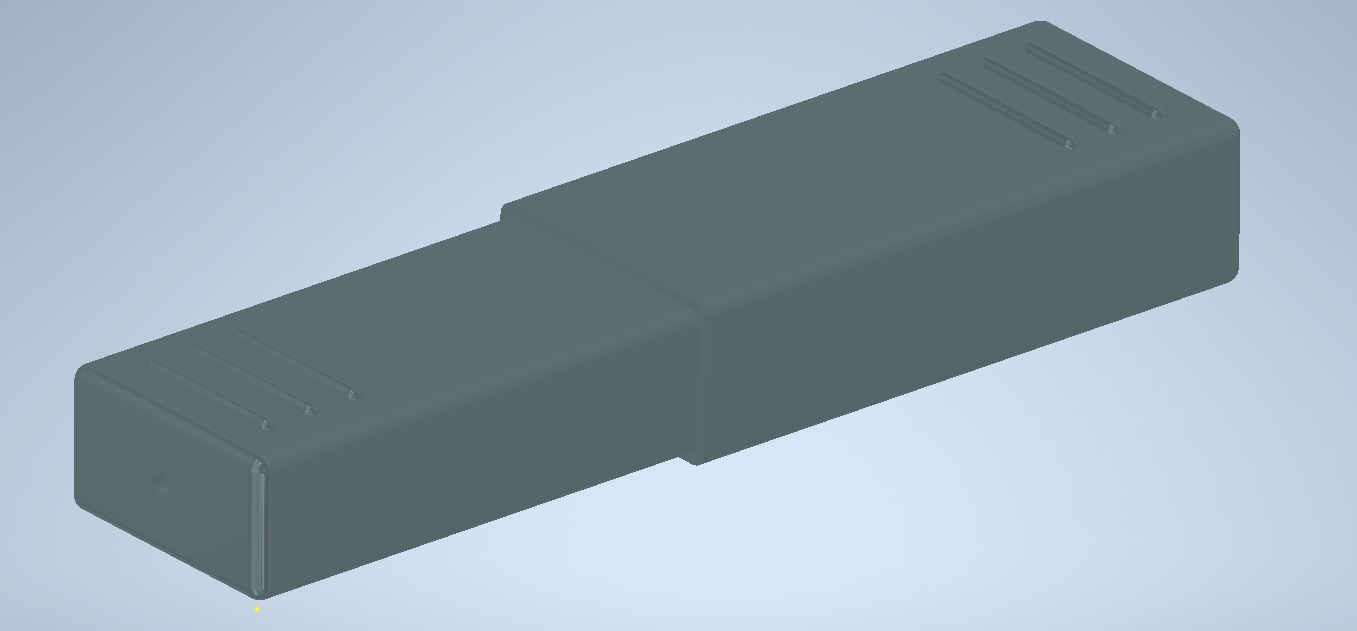
As part of a request by elderly family, here’s a simple 8″x2″x1″ two-part insertion container for tooth brushes and other teeth care tools. Specifically designed to hold denture brushes.

Some slight sanding word required at the end, depending on how tight you want it to be.

tc-holder-top

STL (for 3d printing)

IPT (Autodesk Inventor part file)

tc-holder-bot

STL (for 3d printing)

IPT (Autodesk Inventor part file)

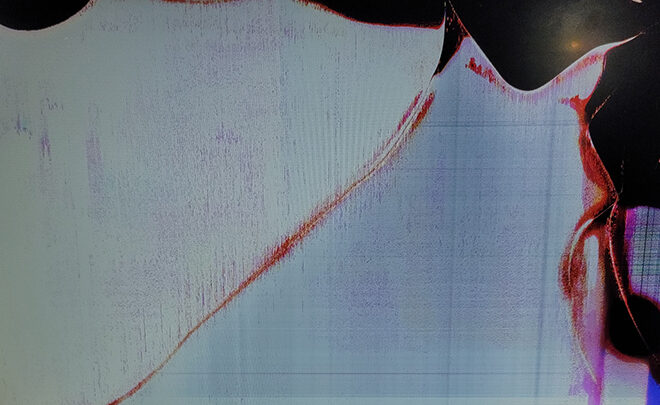
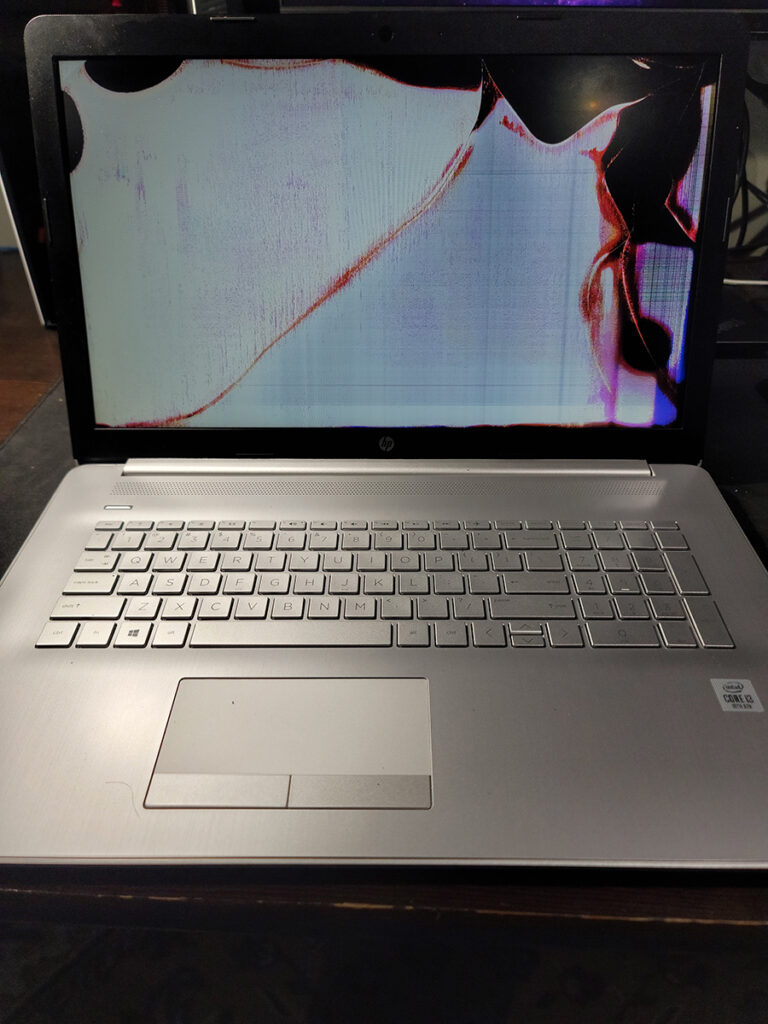
HP 17-by3063st Screen Replacement

Over the past few years I’ve accepted that if a screen replacement doesn’t require a tear-down of the entire laptop chassis, then it just requires a tear-down of the entire top portion of a laptop chassis.

The HP 17-by3063st has changed my mind.

I won’t be discussing this laptop in too much detail here, those who’ve already heard my spiel on modern laptop make/models know how much I abhor consumer models over their business tier counterparts.

For now, let’s look into why it was surprisingly easy to change the broken LCD display panel on this laptop.

It’s all clips

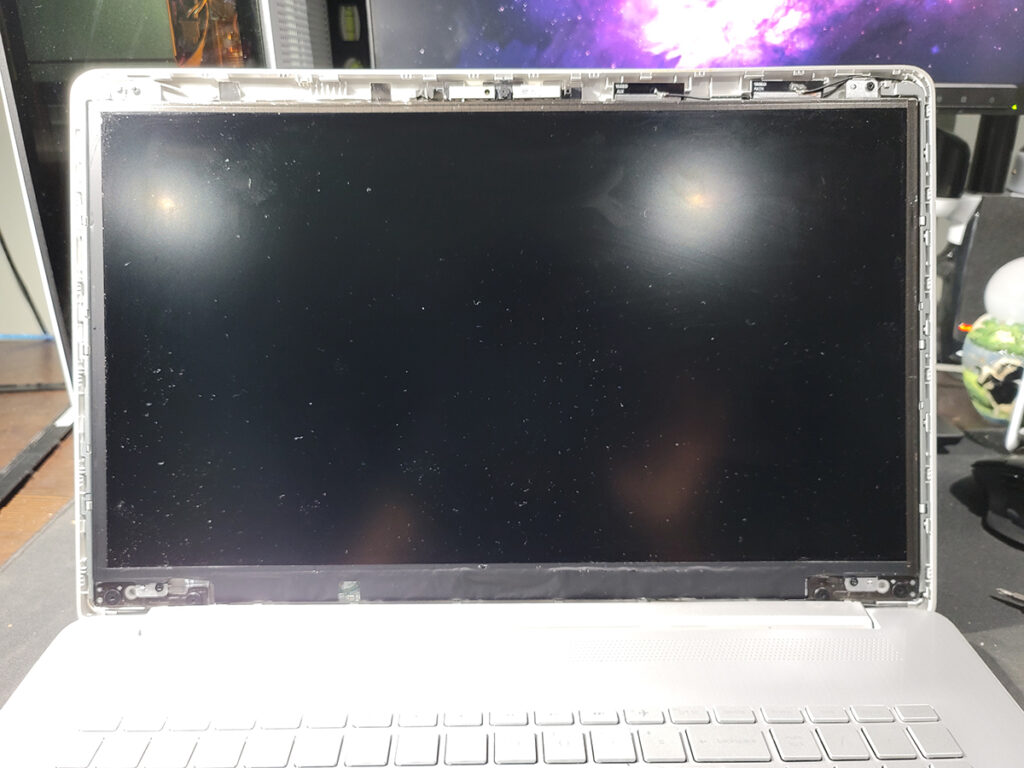
The front display bezel is held in place to the rest of the top chassis with plastic clips. They’re engineered in such a way that levering the bezel by prying it upwards from within the frame releases the clips. To do so I typically use a plastic spacer, but guitar picks work great and can often be found in bulk on eBay for pretty cheap.

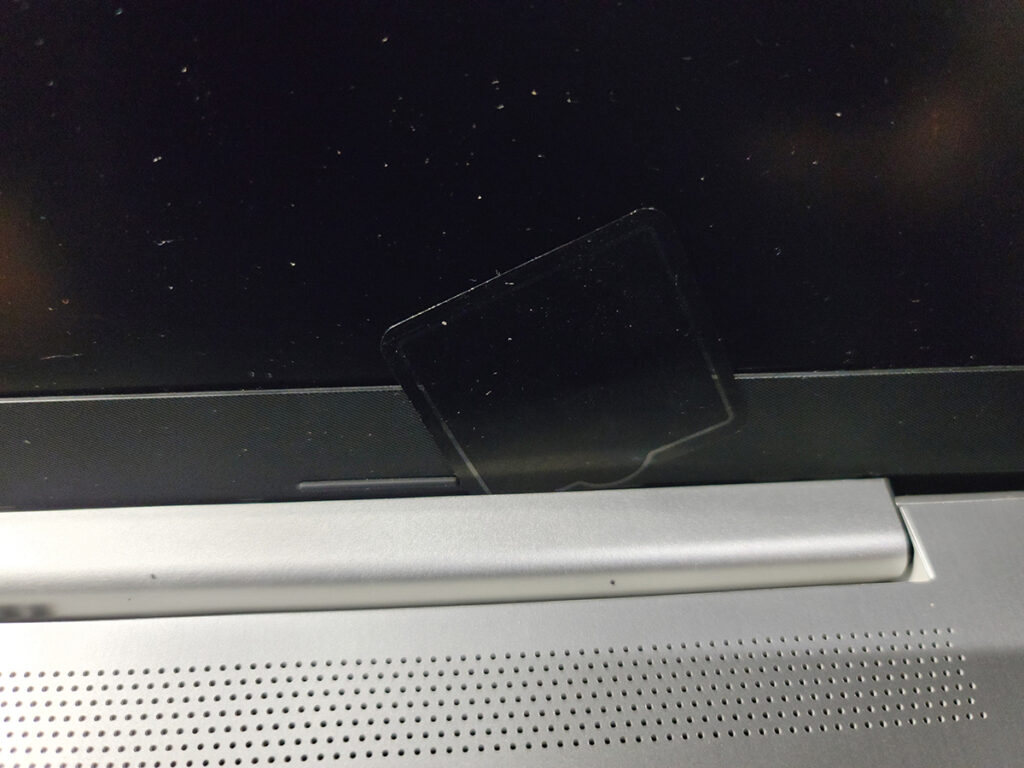
The challenging part came from removing the lower half of the bezel which was behind a plastic hinge cover.

A lot of tear-down documentation for <17 models involved a tear-down of the lower chassis to release the hinge from the frame so that the top assembly can be removed, and along with it this hinge cover.

However, this too is held together by clips! What are the odds.

Similar to the bezel, you can insert a plastic spacer between the hinge and the front display hinge, prying the hinge cover in the direction the display is facing.

Two things to note;

  • It won’t come off completely, so don’t try it.
  • Be weary of pushing your plastic spacer too deep – it’s not necessary to release this hinge cover, and you’ll risk damaging the display ribbon cable

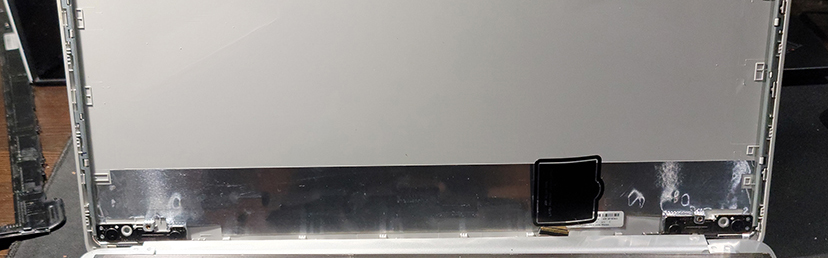
Once off, you can remove the two screws at the top and two at the bottom, ignoring the large flat-head hinge screws.

The display panel will then freely drop off, with the ribbon cable plugged into the lower right portion.

Holding the ribbon cable in place with my plastic spacer, I got my replacement panel, inserted the ribbon cable, and re-assembled the HP 17, performing everything above but in reverse.
Re-seating the bezel and hinge cover wasn’t too difficult, I’d just recommend you start with ensuring all sides of the bezel are inserted and sit flush with the rest of the front assembly, and that there are no gaps between the display and bezel.

All in all, wasn’t too difficult of a replacement.
To the owner of this laptop, I hope you find this useful.

1.25″ Telescope Eyepiece & Adapter Caps

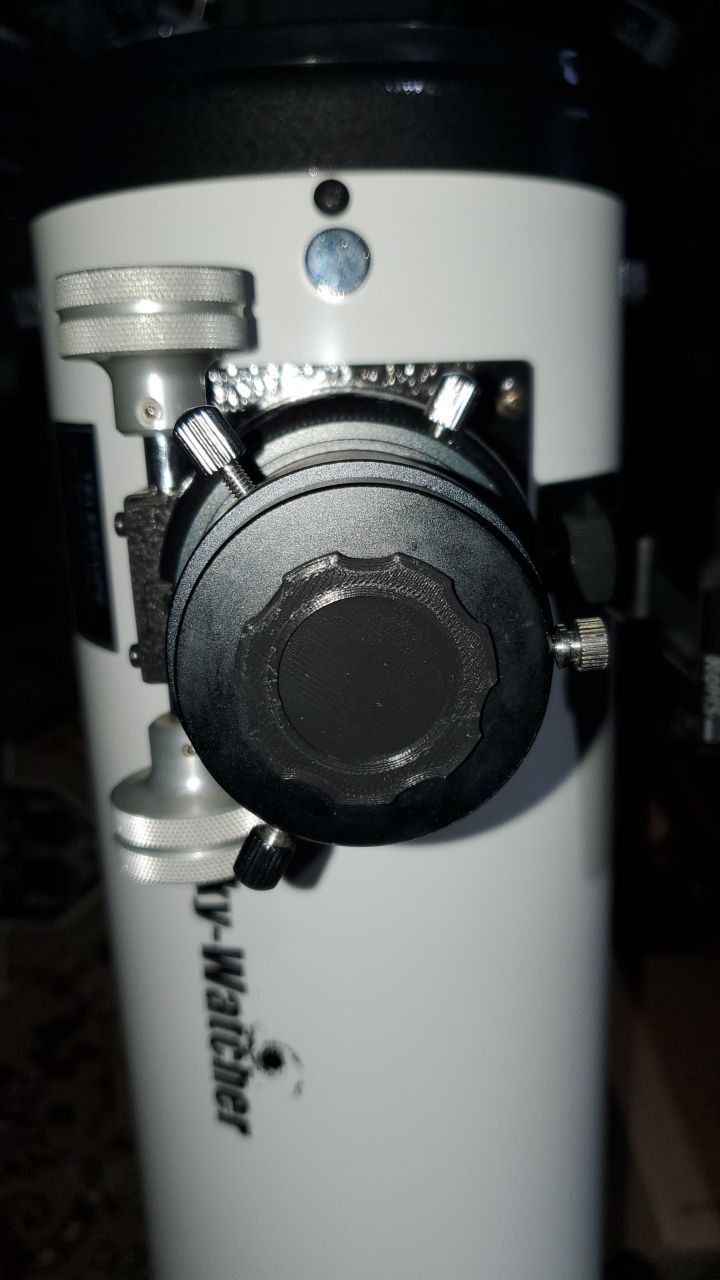
Nothing much to say here, didn’t feel justified spending $10+ just for some plastic caps to protect my telescope from collecting dust and my eyepieces from scratching.

1.25in-adapter-cap

STL (for 3D printing)

IPT (Autodesk Inventor part file)

1.25in-eyepiece-cap

STL (for 3D printing)

IPT (Autodesk Inventor part file)

Zoom, enhance, zoom some more.

Not long ago I had the privilege of meeting Speo, creator of MagicDSC and overall astronomy hobbyist/fanatic, in-person. Thanks again for the crash course on sky watching – I look forward to fiddling with your project more while embracing the hidden beauty of the night sky.

Suffice to say, I’m now the owner of a 6″ Dobsonian SkyWatcher.


I’ve been fascinated with the night sky for the longest time considering the amount of time I spend awake during it from my abysmal sleep schedule.

I thought it’s about time I tapped into a proper tool to observe its many mysteries, and here we go.

Moving forward, I’ll be documenting my journey with this cool piece of tech under #astronomy – including the following on how I improved a cheap red dot viewfinder with an old ball point pen.


Tweaking a Red Dot ViewFinder

While super useful and affordable, I noticed it had quite a bit of wobble in both the X and Y.

You can easily fix this using a few small spacers, but I didn’t want to have to disassemble it again and remove a spacer if I need to re-align it.

For that reason, I ended up stealing the spring from a non-functional ball point pen and cutting it into small segments that I put between the X and Y knobs and the viewfinder frame. After doing that, the wobble was pretty much non-existent.

You can also re-position the spring between the head of the screw and viewfinder body assuming you find yourself calibrating -X/-Y more than +X/+Y.

I can now release tension on each axis without having to adjust how many spacers I use to align it.